Windows 11 high memory usage on 8GB RAM laptops is a common issue faced by many users after recent updates.
This problem can lead to slow performance, lag, and frequent system freezes if not fixed properly.
If your Windows 11 laptop is showing high memory usage even with basic tasks,
you are not alone. Many users with 8GB RAM laptops face slow performance,
lag, and freezing issues after Windows 11 updates.
High RAM usage in Windows 11 usually happens due to background processes,
startup apps, visual effects, and system services running silently.
In this guide, you will learn why Windows 11 uses too much RAM on 8GB laptops
and how to fix high memory usage step by step using safe and proven methods.
Windows 11 high memory usage on 8GB RAM laptops can cause slow performance, lag, and frequent system freezes.
This problem usually appears after Windows updates or due to background processes consuming excessive RAM.
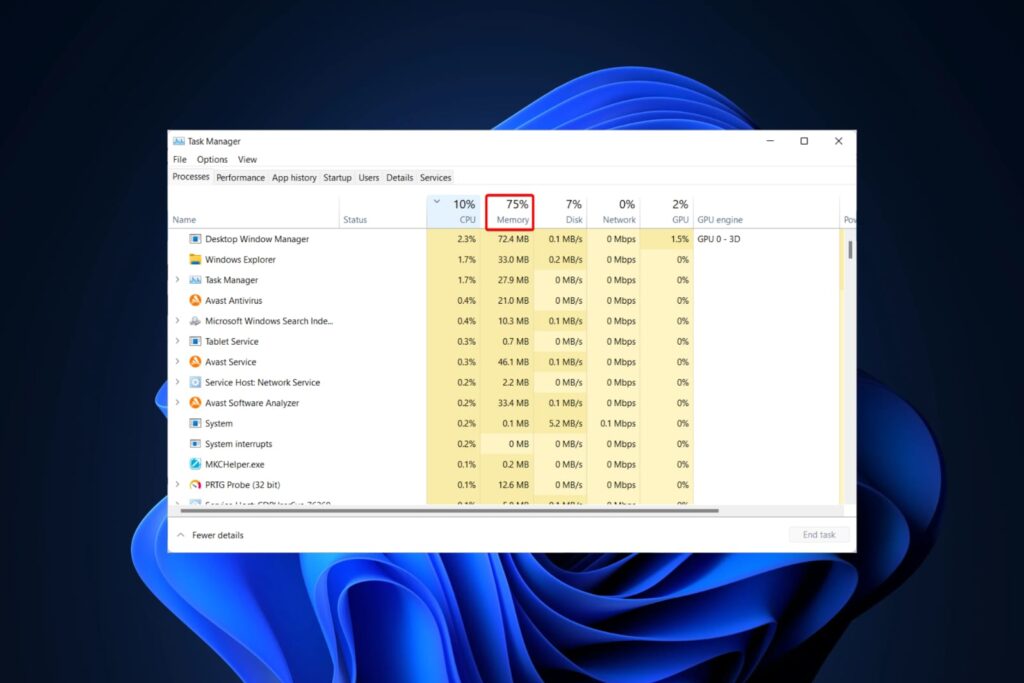
What Is High Memory Usage in Windows 11?
High memory usage means your system RAM is being consumed heavily by apps,
background services, and Windows processes. On an 8GB RAM laptop, this can
quickly lead to slow performance, app freezing, and delayed response.
Windows 11 is more resource-hungry than previous versions, so memory usage
can increase even during normal tasks like browsing or multitasking.
Why Windows 11 Uses Too Much RAM on 8GB Laptops
- Too many background apps running
- Heavy startup programs
- Windows visual effects and animations
- Memory leaks after updates
- Antivirus or third-party software
- Insufficient virtual memory settings
Fix 1: Check Background Apps Using RAM
Open Task Manager by pressing Ctrl + Shift + Esc and check which apps are
consuming high memory. Close unnecessary applications that you are not
actively using.
This simple step can instantly reduce RAM usage on Windows 11 laptops
with 8GB RAM.
(We will cover more Windows 11 performance fixes in our upcoming guides.)
Fix 2: Disable Startup Programs
Many programs start automatically when Windows boots and consume RAM in the background.
Press Ctrl + Shift + Esc to open Task Manager.
Go to the Startup tab.
Disable apps that are not necessary during startup.
This helps reduce memory usage and improves boot speed on Windows 11.
Fix 3: Adjust Virtual Memory Settings
Virtual memory allows Windows to use storage as extra RAM when physical memory is full.
Open System Properties and go to Advanced system settings.
Click Settings under Performance.
Select Advanced and click Change under Virtual Memory.
Set virtual memory to system-managed size or increase it manually.
Fix 4: Turn Off Windows Visual Effects
Windows 11 visual effects use additional system resources.
Search for “Adjust the appearance and performance of Windows”.
Select Adjust for best performance.
Apply the changes.
This reduces RAM load and makes the system faster on low-memory laptops.
Fix 5: Scan for Malware or Heavy Software
Malware and poorly optimized software can cause unusually high RAM usage.
Run a full scan using Windows Security or trusted antivirus software.
Remove any detected threats.
Uninstall unnecessary third-party apps.
This ensures stable and safe system performance.
Fix 6: Disable Background Apps
Many apps continue running in the background even when you are not using them, increasing RAM consumption.
Open Settings > Apps > Installed Apps.
Click on unnecessary apps and go to Advanced options.
Set Background app permissions to Never.
This reduces background memory usage significantly on Windows 11.
Fix 7: Update Drivers and Windows
Outdated drivers can cause memory leaks and high RAM usage.
Open Windows Update and check for updates.
Install all pending system and driver updates.
Restart your laptop after updates.
Keeping Windows and drivers updated improves stability and memory management.
Fix 8: When RAM Upgrade Is the Only Solution
If your laptop consistently uses 80–90% RAM during normal usage, upgrading RAM may be necessary.
Windows 11 works best with 16GB RAM for multitasking.
Check if your laptop supports RAM upgrade.
Adding extra RAM provides a permanent performance boost.
This is recommended for heavy users and professionals.
According to Microsoft support documentation, background services and system settings can impact memory usage in Windows 11.
Section 1: Is Windows 11 High RAM Usage Normal?
Yes, some level of high RAM usage in Windows 11 is normal, especially on 8GB RAM laptops.
Windows 11 uses RAM aggressively for caching and background services to improve speed.
However, if RAM usage stays above 80–90% during basic tasks like browsing or file management, it indicates a performance issue.
In such cases, optimization is required to maintain smooth performance.
Section 2: Final Thoughts
Windows 11 high memory usage on 8GB RAM laptops is a common issue, but it can be fixed with the right optimizations.
By disabling unnecessary startup apps, limiting background processes, and updating system settings, RAM usage can be reduced significantly.
If performance is still slow, upgrading RAM remains the most effective long-term solution.
This guide explains why Windows 11 high memory usage on 8GB RAM laptops happens and how you can fix it step by step.
Frequently Asked Questions (FAQs)
Q1. Is Windows 11 high memory usage normal on 8GB RAM laptops?
Yes, Windows 11 uses more background services and visual effects compared to older versions. On 8GB RAM laptops, this can cause high memory usage, especially after updates.
Q2. Can Windows 11 run smoothly on 8GB RAM?
Yes, Windows 11 can run on 8GB RAM, but performance depends on background apps, startup programs, and system settings. Proper optimization can significantly reduce RAM usage.
Q3. Does upgrading RAM fix high memory usage in Windows 11?
Upgrading RAM can help improve performance, but optimizing Windows settings and disabling unnecessary services should be tried first. RAM upgrade is a long-term solution.