Windows 11 slow on 8GB RAM laptops is a common problem faced by users, especially after recent Windows updates.
Many users with low-end or 8GB RAM laptops face slow performance, lag, and high memory usage after upgrading to Windows 11.
By changing a few important Windows 11 settings, you can significantly improve speed, reduce RAM usage, and make your laptop smoother for daily use.
In this guide, we will cover the best Windows 11 settings for low-end and 8GB RAM laptops that actually work.
1. Disable Startup Apps
(steps + explanation)
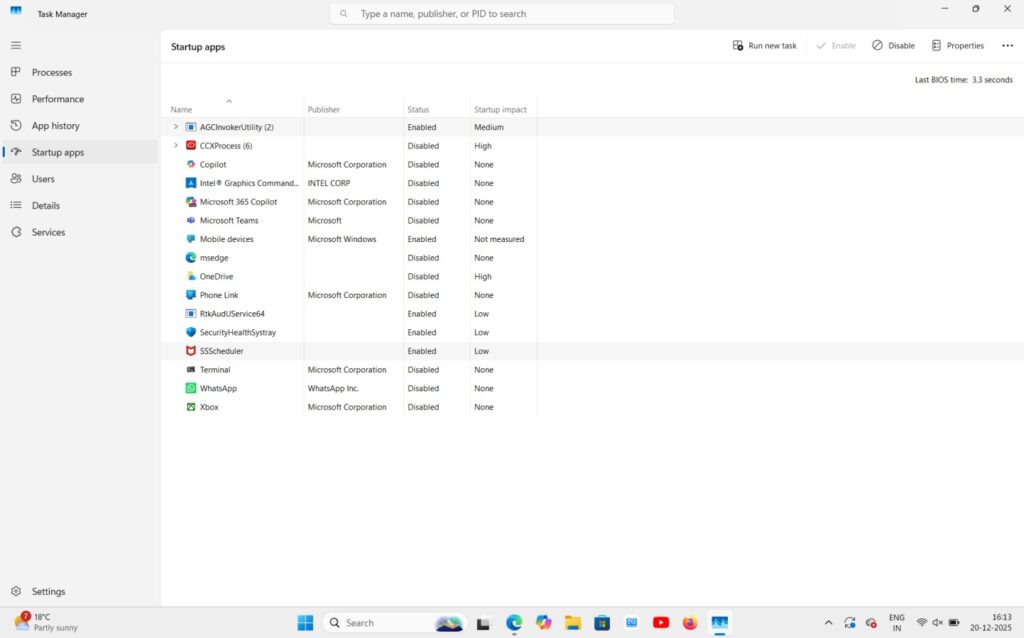
Startup apps are programs that automatically run when Windows starts.
On low-end and 8GB RAM laptops, too many startup apps can significantly slow down boot time and overall system performance.
By disabling unnecessary startup apps, you can free up RAM and reduce background CPU usage.
Step 1: Open Task Manager
First, press Ctrl + Shift + Esc on your keyboard to open Task Manager.
If Task Manager opens in compact mode, click on “More details” to see all available options.
Step 2: Go to Startup Apps tab
In Task Manager, switch to the “Startup apps” tab from the left sidebar.
Here, you will see a list of all applications that start automatically when Windows boots.
Step 3: Identify high impact apps
Check the “Startup impact” column carefully.
Apps marked as High or Medium impact can slow down system startup, especially on low-end or 8GB RAM laptops.
This step helps you quickly identify which startup programs are slowing down your system boot time. Apps marked as “High impact” usually consume more RAM and CPU during startup.
Step 4: Disable unnecessary startup apps
Right-click on apps that you do not need during startup and select “Disable”.
For example, apps like Adobe CC, OneDrive, Teams, or third-party updaters can usually be disabled safely.
Disabling startup apps does not uninstall them.
You can safely re-enable any app later if required.
Step 5: Restart your system
After disabling unnecessary startup apps, restart your laptop to apply the changes.
You should notice faster boot times and improved overall system performance.
Step 6: Check startup impact after restart
After restarting your laptop, open Task Manager again and check the Startup impact column. You should notice fewer apps running at startup and improved system performance.
⚠️ Important things you should NOT disable
Do not disable essential system services like SecurityHealthSystray, Windows Security, audio drivers, or graphics-related services. Disabling these may cause system instability.
Why Windows 11 Runs Slow on 8GB RAM
Windows 11 slow on 8GB RAM is a common problem, especially after recent updates.
Windows 11 uses more background services, visual effects, and security processes compared to Windows 10.
These background tasks continuously consume RAM and CPU, which creates performance issues on laptops with limited memory.
Most 8GB RAM laptops struggle because Windows 11 runs multiple system services like Windows Defender, telemetry, update services, and startup apps at the same time.
When RAM usage crosses 70–80%, the system starts relying on virtual memory, which makes the laptop feel laggy and slow.
Another reason why Windows 11 runs slow on 8GB RAM is poor startup optimization.
Many unnecessary apps start automatically when Windows boots, increasing boot time and overall memory usage.
Low-end processors combined with 8GB RAM also fail to handle multitasking smoothly, especially during browsing, video playback, or software installation.
However, by changing a few Windows 11 settings and disabling unnecessary background apps, you can significantly improve speed and overall system performance on 8GB RAM laptops.
If you are facing performance issues after updates, you can also read our detailed guide on fixing Windows 11 slow performance issues.
Is 8GB RAM Enough for Windows 11 in 2025?
Best Windows 11 Settings to Fix Slow Performance on 8GB RAM
8GB RAM is still enough for Windows 11 in 2025, but only if your system is properly optimized. On default settings, Windows 11 uses more background services, visual effects, and security processes, which can make 8GB RAM laptops feel slow.
If you use your laptop for basic tasks like browsing, online classes, office work, YouTube, and light multitasking, 8GB RAM works fine. However, for heavy tasks like video editing, gaming, or running multiple apps together, performance may drop.
👉 For most users, Windows 11 slow on 8GB RAM is a settings issue, not a hardware limitation.
How to make 8GB RAM work smoothly on Windows 11
The good news is that you don’t need to upgrade RAM immediately. By applying the Windows 11 optimization settings explained in this guide, you can:
- Reduce RAM usage
- Improve boot time
- Make the system more responsive
- Fix Windows 11 slow performance on 8GB RAM laptops
Most users notice a clear speed improvement after disabling unnecessary startup apps, background processes, and visual effects.
According to Microsoft, optimizing background processes and system settings can significantly improve Windows 11 performance on low-RAM laptops.
Disable Startup Apps in Windows 11
One of the biggest reasons Windows 11 feels slow on 8GB RAM laptops is unnecessary startup apps.
Many apps automatically start when Windows boots, consuming RAM and CPU in the background.
To disable startup apps in Windows 11:
- Press Ctrl + Shift + Esc to open Task Manager
- Click on the Startup tab
- Check the Startup impact column
- Right-click apps with High or Medium impact
- Select Disable
After disabling unnecessary startup apps, boot time improves and RAM usage drops significantly, especially on low-end laptops.
Turn Off Visual Effects for Better Performance
Windows 11 uses visual effects like animations, transparency, and shadows that consume extra RAM and CPU resources. On 8GB RAM laptops, these effects can make the system feel slow and laggy.
Turning off unnecessary visual effects can significantly improve system responsiveness and overall performance, especially on low-end or older laptops.
Steps to turn off visual effects in Windows 11:
- Press Windows + S and search for “Advanced system settings”
- Open it and click on the Settings button under Performance
- Select “Adjust for best performance”
- Click Apply, then OK
After disabling visual effects, you will notice faster window opening, smoother multitasking, and reduced RAM usage on 8GB RAM systems.
Disable Background Apps in Windows 11
Many apps in Windows 11 continue running in the background even when you are not using them. These background apps consume RAM, CPU, and battery, which can slow down 8GB RAM laptops.
Disabling unnecessary background apps can free up system resources and improve overall performance.
Steps to disable background apps in Windows 11:
- Press Windows + I to open Settings
- Go to Apps > Installed apps
- Click on the three dots next to an app you don’t need running in the background
- Select Advanced options
- Under Background apps permissions, choose “Never”
Disable background activity only for apps you don’t use frequently. This helps reduce RAM usage and makes Windows 11 smoother on 8GB RAM systems.
Adjust Virtual Memory (Page File) for Better Performance
Virtual memory plays an important role when physical RAM is limited. On 8GB RAM laptops, Windows 11 often relies on virtual memory (page file) to handle multitasking smoothly.
If virtual memory is set too low or disabled, the system may feel slow, laggy, or unresponsive.
Steps to adjust virtual memory in Windows 11:
- Press Windows + S and search for “Advanced system settings”
- Open it and click on Settings under the Performance section
- Go to the Advanced tab
- Click Change under Virtual Memory
- Uncheck “Automatically manage paging file size”
- Select your system drive (usually C:)
- Choose Custom size
- Set Initial size to 4096 MB and Maximum size to 8192 MB
- Click Set, then OK
- Restart your system
Adjusting virtual memory helps Windows 11 manage memory more efficiently on 8GB RAM laptops, especially during heavy tasks.
Conclusion
Windows 11 slow on 8GB RAM laptops is a common issue, but it does not always mean that you need to upgrade your RAM immediately. In most cases, Windows 11 feels slow due to unnecessary startup apps, background processes, visual effects, and improper virtual memory settings.
By applying the Windows 11 optimization settings explained in this guide, you can significantly improve system performance, reduce RAM usage, and make your laptop faster and more responsive. For basic tasks like browsing, office work, online classes, and light multitasking, 8GB RAM is still enough for Windows 11 in 2025.
However, if you regularly do heavy multitasking, gaming, or video editing, upgrading to 16GB RAM can provide better long-term performance and smoother experience.
Frequently Asked Questions (FAQs)
Is 8GB RAM enough for Windows 11 in 2025?
Answer:
Yes, 8GB RAM is enough for Windows 11 in 2025 for everyday tasks like browsing, office work, online classes, and light multitasking. However, proper optimization is necessary for smooth performance.
Why does Windows 11 feel slow on 8GB RAM laptops?
Answer:
Windows 11 uses more background services, visual effects, and security processes. On 8GB RAM systems, this can cause higher RAM usage and slow performance if not optimized.
Should I upgrade to 16GB RAM for Windows 11?
Answer:
Upgrading to 16GB RAM is recommended for heavy tasks like video editing, gaming, or running multiple applications. For normal users, 8GB RAM works fine with proper Windows 11 settings.