Windows 11 laptop battery draining fast is a common problem faced by many users, especially on 8GB RAM laptops and budget laptops. Even when no heavy apps are running, the battery percentage drops quickly, and the laptop does not last as long as expected.
This problem usually happens due to background services, unnecessary startup programs, wrong power settings, high CPU usage, and system processes running in the background.
The good news is — by applying a few practical Windows 11 battery optimization settings, you can significantly increase battery backup and improve laptop performance.
In this step-by-step guide, you will learn the best proven fixes to stop fast battery drain and increase battery life on your Windows 11 laptop.
Common Reason Why Windows 11 Laptop Battery Drain Fast
- too many background apps running
- high CPU usage due to system processes
- wrong battery & power settings
- windows updates running in background b
- Bright screen & high refresh rate
- Enabled animations and visual effects
- startup apps consuming resources
Fix 1: Turn On Battery Saver Mode (Recommended)
Click on Start → Settings
Go to System → Power & Battery
Enable Battery Saver
Set it to Turn On Automatically at 20% or higher
his reduces background activity and increases battery backup instantly.
Fix 2: Disable Unnecessary Startup Apps
- Press Ctrl + Shift + Esc
- Open Task Manager
- Go to Startup Apps
- Disable apps like:
- Spotify
- Discord
- MS Teams
- Adobe services
- Auto-updaters
Disabling startup apps reduces battery drain and background usage.
Fix 3: Change Power Mode to “Best Power Efficiency”
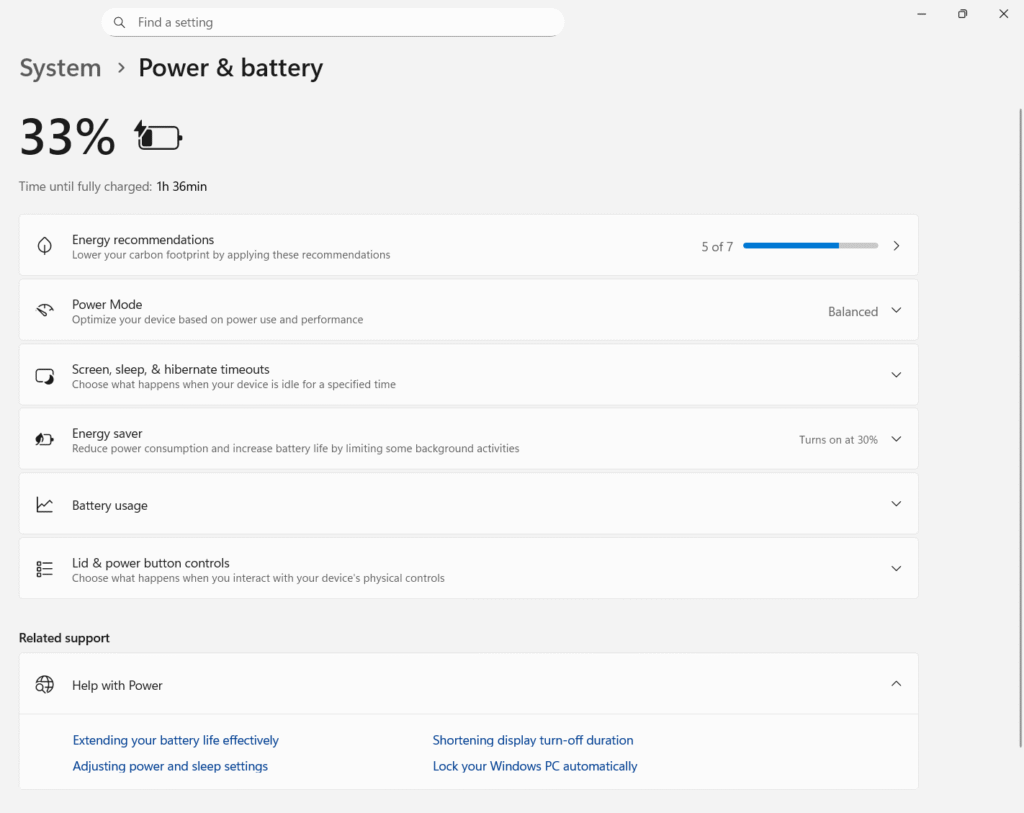
- Go to Settings → System → Power & Battery
- Open Power Mode
- Select Best Power Efficiency
Benefit line:
This balances performance and reduces battery consumption.
Fix 4: Disable Background Apps (Stops Hidden Battery Drain)
Why this helps:
Background apps continue running even when you are not using them, which silently drains battery life.
Steps:
- Open Settings → Apps → Installed Apps
- Select any unnecessary app
- Click Advanced Options
- Under Background App Permissions, select Never
Apps you can safely restrict:
- Xbox Apps
- Cortana
- Weather
- Widgets
- Mail (if not used)
- Spotify
- Other unused apps
Benefit:
This reduces background activity and improves battery backup.
Fix 5: Turn Off Battery-Draining Windows Features
Why this helps:
Some Windows features run continuously in the background and consume extra battery.
Steps:
- Open Settings → Privacy & Security
- Turn OFF the following options:
- Location
- Background Scanning Services
- Advertising ID / Personalization
- Open Settings → Bluetooth & Devices
- Turn OFF Bluetooth when not in use
Benefit:
This helps reduce unnecessary battery usage and increases laptop battery life.
Fix 6: Reduce Screen Brightness & Enable Battery Saver
Why this helps:
High screen brightness and performance mode consume more battery power.
Steps:
- Go to Settings → System → Power & Battery
- Under Battery Saver, click Turn On Now
- Now open Display Settings
- Reduce Brightness to 40–60%
Benefit:
This significantly increases battery backup during normal use.
✅ Fix 7: Disable Unnecessary Startup Programs
Why this helps:
Startup programs run automatically when the laptop turns on and continuously drain battery.
Steps:
- Press Ctrl + Shift + Esc to open Task Manager
- Go to Startup Apps
- Disable the apps you don’t need, such as:
- Microsoft Teams
- OneDrive (if not used)
- Steam / Game Launchers
- Adobe Services
- Auto-updaters
Benefit:
This reduces background load and improves battery life and performance.
✅ Fix 8: Update Windows & Drivers (Important Fix)
Why this helps:
Outdated drivers can cause high battery drain and overheating.
Steps:
- Go to Settings → Windows Update
- Click Check for Updates
- Also update:
- Graphics Driver
- Wi-Fi Driver
- Chipset Driver
Benefit:
Updated drivers optimize performance and reduce battery consumption.
Extra Tips to Improve Battery Life in Windows 11
Here are some additional tips that can help you reduce battery drain and improve overall laptop performance:
- Lower your screen brightness when working indoors.
- Turn off Bluetooth and Wi-Fi when they are not required.
- Avoid using heavy apps while charging the laptop.
- Disable live wallpapers, widgets, and animations.
- Close background browser tabs and unused applications.
- Use Airplane Mode when you are only working offline.
- Avoid keeping the laptop plugged in at 100% for long periods.
These small habits help extend battery life and reduce long-term battery wear.
When Battery Drain Is a Hardware Problem
Sometimes, battery drain is not caused by software or Windows settings.
It may be a hardware-related issue.
You may be facing a hardware problem if:
- The laptop heats up even when idle
- Battery percentage drops suddenly (for example 60% → 20%)
- The laptop shuts down even when battery shows power left
- Battery health is below 70%
- The battery drains extremely fast after charging
In such cases, software fixes may not be very effective.
It is recommended to get the battery and motherboard checked by a technician.
When Should You Replace Your Laptop Battery?
You should consider replacing your laptop battery if:
- The battery is swollen or bulging
- The laptop turns off suddenly without warning
- The battery backup is less than 1 hour
- The battery cycle count has reached its limit
- Battery calibration does not improve performance
If these symptoms appear, replacing the battery is the best and safest solution instead of forcing software fixes.
Conclusion
Windows 11 battery draining issue on laptops is mostly caused by background apps, high performance mode, outdated drivers, and unnecessary system services. By following these step-by-step fixes, you can significantly improve battery life, reduce overheating, and make your laptop last longer on a single charge.
If the problem still continues, consider checking your battery health or replacing an old battery, because sometimes hardware degradation is the real cause.
Frequently Asked Questions (FAQs)
Q1. Why is my Windows 11 laptop battery draining so fast?
Battery drains fast due to background apps, high brightness, performance mode, outdated drivers, and heavy startup programs.
Q2. Does Windows Update increase battery drain?
Sometimes after updates battery usage increases, but installing latest driver and system patches usually fixes the issue.
Q3. How can I increase battery life on an 8GB RAM laptop?
Disable startup apps, enable battery saver, reduce brightness, update drivers, and use Best Power Efficiency mode.
Q4. Is it safe to use Battery Saver mode all the time?
Yes, it is completely safe and helps reduce battery consumption during normal use.
Q5. When should I replace my laptop battery?
If battery drains very fast even after fixes and battery health is below 60%, replacement is recommended.