If you are facing Windows 11 Slow on 8GB RAM issues, you are not alone.
Is Windows 11 lagging on your 8GB RAM laptop? You are not alone. After the recent 2026 updates, many users have noticed high memory usage and slow performance on mid-range laptops.
In this guide, I will show you the exact 7 fixes I tested to free up RAM and boost speed instantly.
Many users face Windows 11 Slow on 8GB RAM issues after multitasking, but these steps will help
1. Disable Resource-Heavy Startup Apps
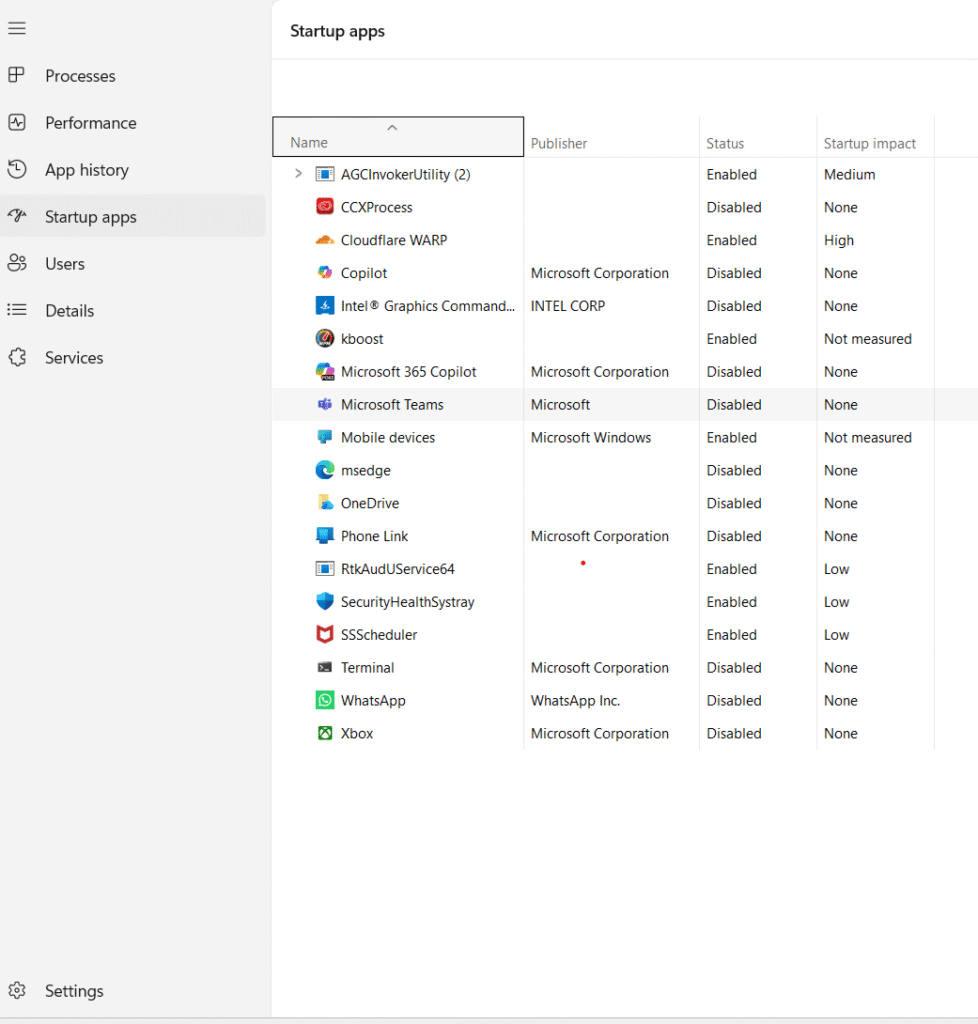
Most of your 8GB RAM is consumed the moment you turn on your PC. Many apps like Microsoft Teams, Spotify, and Steam start automatically.
- How to fix: Open Task Manager (Ctrl+Shift+Esc) > Go to Startup Apps > Disable everything you don’t need daily.
2. Increase Virtual Memory (Paging File)
Virtual memory uses your SSD/HDD as extra RAM. This is the best fix for 8GB RAM users.
- How to fix: Search for “Adjust appearance and performance of Windows” > Advanced tab > Change (under Virtual Memory) > Uncheck “Automatically manage” > Set Custom size based on your disk space.
3. Turn Off Transparency Effects & Animations
Windows 11 looks great, but its visual effects eat up system resources.
- How to fix: Go to Settings > Accessibility > Visual Effects > Toggle off Transparency effects and Animation effects.
4. Disable Background Apps
Even when you aren’t using them, apps like Weather, News, and Maps run in the background.
- How to fix: Go to Settings > Apps > Installed Apps > Click the three dots next to an app > Advanced options > Set “Background apps permissions” to Never.
5. Use “Best Performance” Power Mode
By default, Windows tries to save battery, which slows down the processor.
- How to fix: Go to Settings > System > Power & Battery > Change Power mode to Best Performance.
6. Clear Windows Update Cache
Sometimes old update files cause system lag and high disk usage.
- How to fix: Search for “Disk Cleanup” > Select C: drive > Click Clean up system files > Check Windows Update Cleanup and click OK.
7. Debloat Windows 11
Windows 11 comes with pre-installed “bloatware” that runs unnecessary services. Uninstall apps like OneDrive (if not used), News, and pre-installed games to free up RAM.
If you think your hardware is the problem, check out our ultimate guide on to boost your PC performance even further!
Frequently Asked Questions (FAQs)
Q1. Why is Windows 11 so slow on 8GB RAM laptops?
Answer: Windows 11 is a resource-heavy operating system. Background services, visual effects, and pre-installed bloatware can quickly consume 8GB of RAM, leading to lag and performance drops.
Q2. Is 8GB RAM enough for gaming on Windows 11?
Answer: 8GB is the bare minimum for modern gaming. For a smooth experience without lag, it is highly recommended to optimize your system settings or upgrade to 16GB RAM.
Q3. Can Virtual Memory really speed up my PC?
Answer: Yes, Virtual Memory (Paging File) acts as a temporary overflow for your physical RAM. Setting it correctly helps prevent system crashes and freezing when your 8GB RAM is full.
Q4. Does disabling startup apps affect my computer?
Answer: No, it only prevents apps from opening automatically when you log in. You can still open them manually whenever you need them, and it saves a significant amount of RAM.
Conclusion:
Optimizing Windows 11 Slow on 8GB RAM devices is essential for a smooth workflow in 2026. By following the 7 steps mentioned in this guide—from disabling startup apps to clearing the update cache—you can significantly reduce system lag and high memory usage.
While software tweaks provide immediate relief, always remember that 8GB RAM is the baseline for modern computing. If you frequently use heavy software like Chrome with many tabs or video editing tools, upgrading to 16GB RAM and using an SSD will provide a permanent solution to your performance issues. Keep your Windows updated and perform regular disk cleanups to maintain this speed.
Expert Tips for Better Performance:
- Restart Weekly: Always restart your PC at least once a week to clear temporary RAM cache.
- Check for Malware: Sometimes “Windows 11 slow” issues are caused by hidden viruses. Use Windows Defender to run a full scan.
- Monitor Task Manager: Keep an eye on the “Processes” tab to see which app is eating your RAM in real-time.
“For more information on system requirements, visit the official Microsoft Support page.