Windows 11 high RAM usage when idle is common on 8GB RAM laptops due to background services and system processes.
Windows 11 uses too much RAM even when idle, and this confuses many users—especially those with 8GB RAM laptops. Even when no apps are open, Task Manager often shows 50–70% RAM usage. This is not always a hardware problem. In most cases, background services, Windows features, and system optimizations are responsible. In this article, we will explain why Windows 11 consumes high RAM when idle and which background services are safe to control.
Why Windows 11 Uses So Much RAM Even When Idle
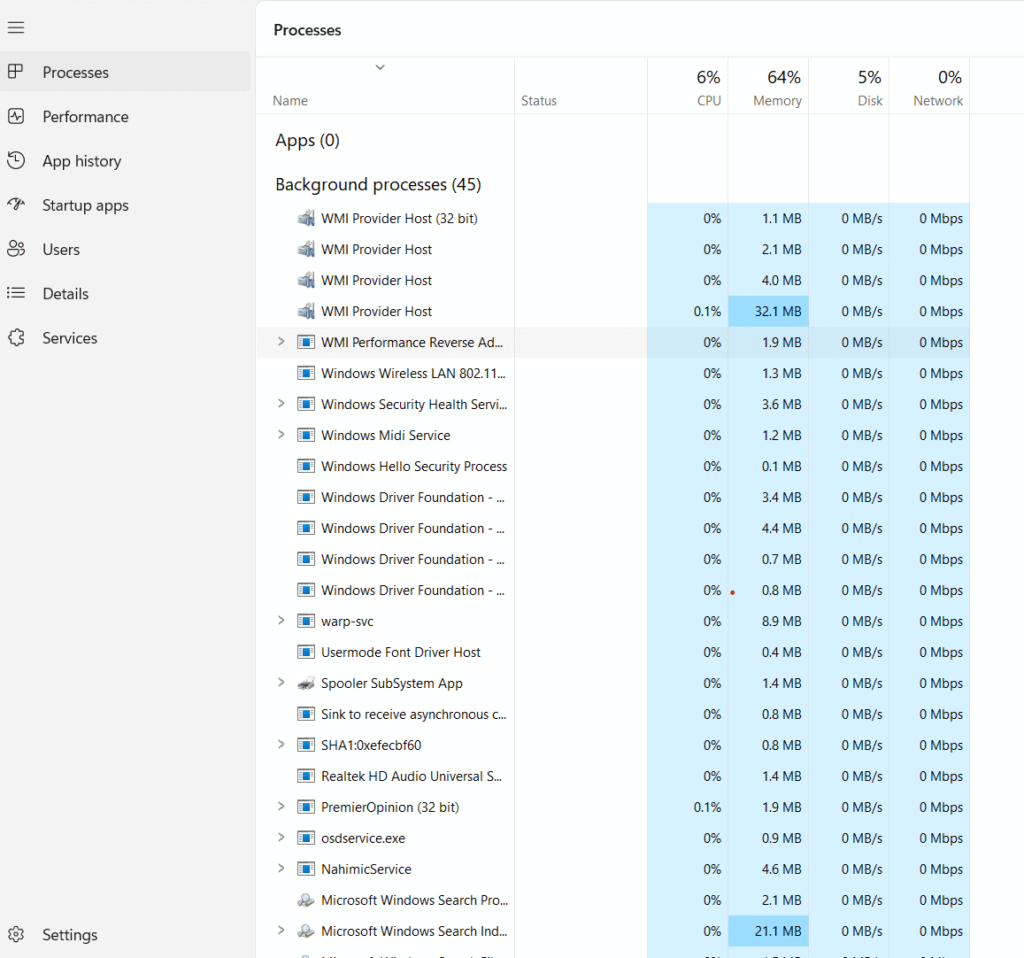
This explains why Windows 11 high RAM usage when idle happens even when no apps are open.
Windows 11 is designed to use available RAM aggressively to improve performance. Even when your system is idle, Windows runs multiple background services for security, updates, indexing, and system optimization. On laptops with 8GB RAM, these background processes consume a significant portion of memory, making it look like Windows is using too much RAM without any active apps.
🔹 Background Windows Services
Windows 11 runs several background services continuously, such as diagnostics, update services, and system monitoring. These services are essential for system stability and security, but they also reserve RAM even when you are not using your laptop actively.
🔹SysMain (SuperFetch) Service
The SysMain service preloads frequently used applications into memory to make them open faster. While this works well on systems with higher RAM, on 8GB RAM laptops it often increases idle RAM usage instead of improving performance.
🔹 Windows Defender & Security Services
Windows Defender runs real-time protection, background scans, and security checks at all times. These security processes use RAM continuously, which contributes to higher memory usage even when the system is idle.
🔹 Search Indexing, Widgets, and Telemetry
Features like Windows Search indexing, widgets, and diagnostic data collection also run silently in the background. These services improve user experience but can noticeably increase RAM usage on low-end or 8GB RAM laptops.
Is High RAM Usage When Idle a Problem?
High RAM usage when idle is not always a problem in Windows 11. The operating system is designed to use free memory for caching and background optimization. However, on 8GB RAM laptops, consistently high idle memory usage can reduce available RAM for active tasks, causing lag and slow performance during multitasking.
When Should You Be Concerned About Idle RAM Usage?
You should be concerned if idle RAM usage stays above 65–70% even after a fresh boot, especially if your laptop becomes slow while opening apps or switching between tasks. In such cases, background services and startup programs may need optimization.
Should You Worry About High RAM Usage When Idle on Windows 11?
High RAM usage when idle on Windows 11 does not always indicate a serious issue. The operating system is designed to use available memory efficiently for caching and background optimization. This helps apps open faster and improves overall responsiveness.
However, on 8GB RAM laptops, aggressive background services may reduce available memory for active tasks. If you notice slow performance, lag while multitasking, or frequent disk usage, then optimization becomes necessary. Disabling unnecessary startup apps and limiting background services can free up RAM and improve system stability.
For most users, Windows 11 high RAM usage when idle is normal behavior and not a hardware fault.
In real-world usage, most users will not notice any serious issue with Windows 11 high RAM usage when idle. The system dynamically manages memory and releases it automatically when applications require more resources.
Quick Tips to Reduce RAM Usage Further
Even after optimizing background services, keeping Windows 11 updated and restarting your system once a week can help maintain stable RAM usage. Avoid installing unnecessary third-party optimization tools, as they often consume more memory than they save.
You can also check our guide on Windows 11 High RAM Usage fixes for better overall system performance.
According to Microsoft, Windows manages memory dynamically to improve system performance.