If you want to speed up Windows 11 on 8GB RAM, there are several simple optimization steps that can significantly improve performance.
Many users with 8GB RAM laptops notice that Windows 11 becomes slow over time. Apps take longer to open, multitasking feels laggy, and overall performance drops. This usually happens because Windows 11 runs many background services that consume RAM and disk resources.
If your laptop with 8GB RAM feels slow or unresponsive, you are not alone. Many users experience performance issues after updates or when too many startup programs run in the background.
In this guide, we will explain the best ways to speed up Windows 11 on an 8GB RAM laptop. These simple optimization tips can improve performance, reduce lag, and make your laptop faster without upgrading hardware.
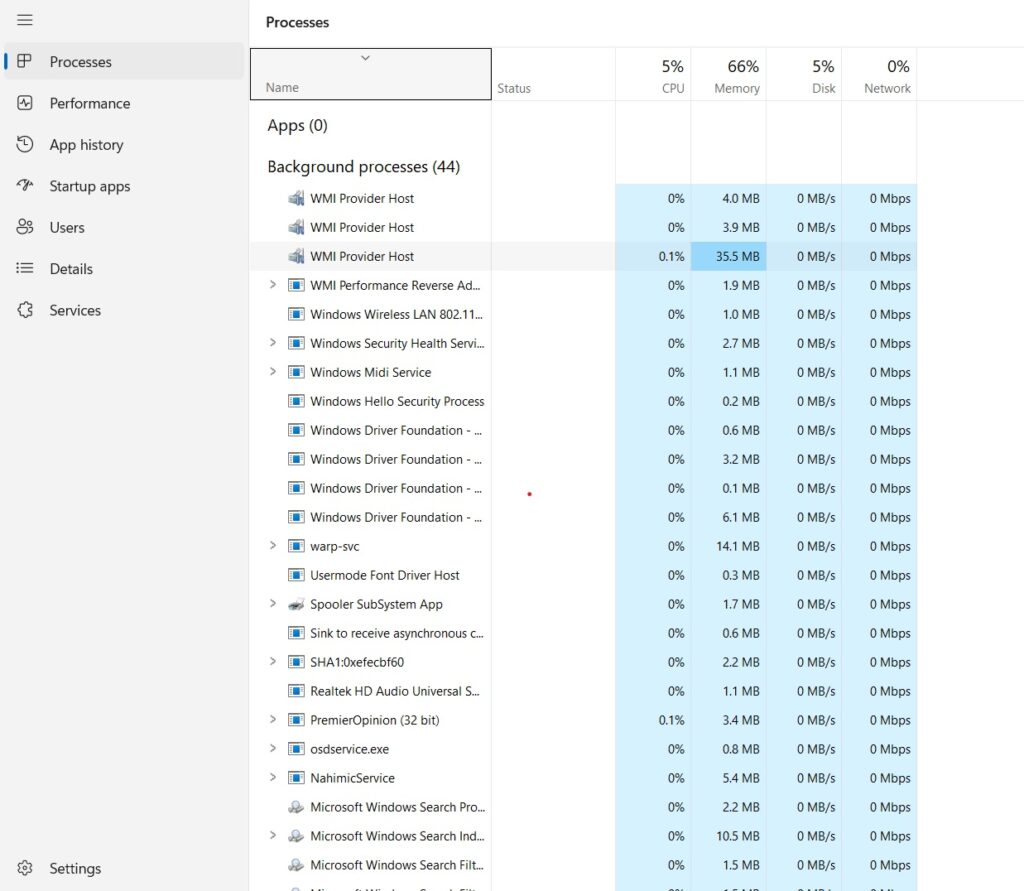
Why Windows 11 Feels Slow on 8GB RAM Laptops
You can also optimize virtual memory to improve performance on low RAM laptops.
Windows 11 requires more system resources compared to older versions of Windows. On laptops with only 8GB RAM, background services, startup apps, and system processes can quickly consume available memory. When RAM usage becomes high, the system starts relying more on virtual memory, which can slow down performance.
Another common reason is too many applications running in the background. Programs like browsers, antivirus software, update services, and startup applications constantly use RAM and disk resources. This can make Windows 11 feel slow, especially on laptops with traditional HDD storage.
Signs Your Windows 11 Laptop Needs Optimization
If your Windows 11 laptop has 8GB RAM and feels slow, there are some common signs that indicate your system needs optimization. Recognizing these signs early can help you improve performance.
Common signs include:
- Laptop takes a long time to boot
- Applications open slowly
- High RAM usage in Task Manager
- System freezes during multitasking
- Browser tabs lag or crash frequently
Best Ways to Speed Up Windows 11 on 8GB RAM
Many applications automatically start when Windows boots. These startup programs consume RAM and slow down the system. Disabling unnecessary startup apps can significantly improve boot time and overall performance.
You can disable startup programs by opening Task Manager and navigating to the Startup tab. From there, disable apps that are not essential.
Turn Off Background Apps
Many apps continue running in the background even when you are not actively using them. These background apps consume RAM, CPU, and disk resources, which can slow down your Windows 11 laptop.
To disable unnecessary background apps, go to Settings → Apps → Installed Apps and check which apps are running in the background. Disabling apps that you rarely use can help free up memory and improve system performance on laptops with 8GB RAM.
Disable Visual Effects
Windows 11 includes many visual animations and effects that look attractive but consume system resources. On low-end laptops with 8GB RAM, these effects can reduce overall performance.
Disabling unnecessary visual effects can make your system faster. You can do this by opening System Properties → Performance Options → Adjust for best performance.
Upgrade from HDD to SSD
If your laptop still uses a traditional hard drive (HDD), upgrading to an SSD can significantly improve Windows 11 performance. SSDs are much faster than HDDs and can reduce boot time, app loading time, and overall system lag.
For laptops with 8GB RAM, switching to an SSD is one of the most effective upgrades to make the system feel much faster.
According to Microsoft, Windows 11 requires more system resources than Windows 10.
Frequently Asked Questions (FAQs)
Is 8GB RAM enough for Windows 11?
Yes, 8GB RAM is enough for basic tasks like browsing, office work, and media consumption. However, performance can slow down if too many applications run simultaneously. Optimizing Windows settings can help improve performance.
Why is my Windows 11 laptop slow with 8GB RAM?
Windows 11 may feel slow on 8GB RAM laptops due to background apps, startup programs, outdated drivers, and heavy system processes. Disabling unnecessary services and optimizing system settings can help improve speed.
Will upgrading to SSD improve Windows 11 performance?
Yes, upgrading from an HDD to an SSD can significantly improve Windows 11 performance. SSDs provide faster boot times, quicker app loading, and smoother overall system performance.
Conclusion
Windows 11 can run smoothly on an 8GB RAM laptop if the system is properly optimized. Disabling unnecessary startup programs, turning off background apps, adjusting virtual memory, and reducing visual effects can significantly improve performance.
If your laptop still feels slow, upgrading from an HDD to an SSD can make a noticeable difference. With the right optimizations, even an 8GB RAM laptop can provide a smooth and responsive Windows 11 experience.
These tips can help you speed up Windows 11 on 8GB RAM laptops and make the system faster for daily tasks.