1.Best Laptop Overheating Fix Methods
These laptop overheating fix methods will help reduce heat quickly.
Laptop overheating fix is important if your device gets too hot during use. In this guide, you will learn simple and effective methods to cool down your laptop and improve performance.
➡️ This laptop overheating fix guide will help you cool down your laptop faster.
➡️ These laptop overheating fix methods work for every laptop brand.
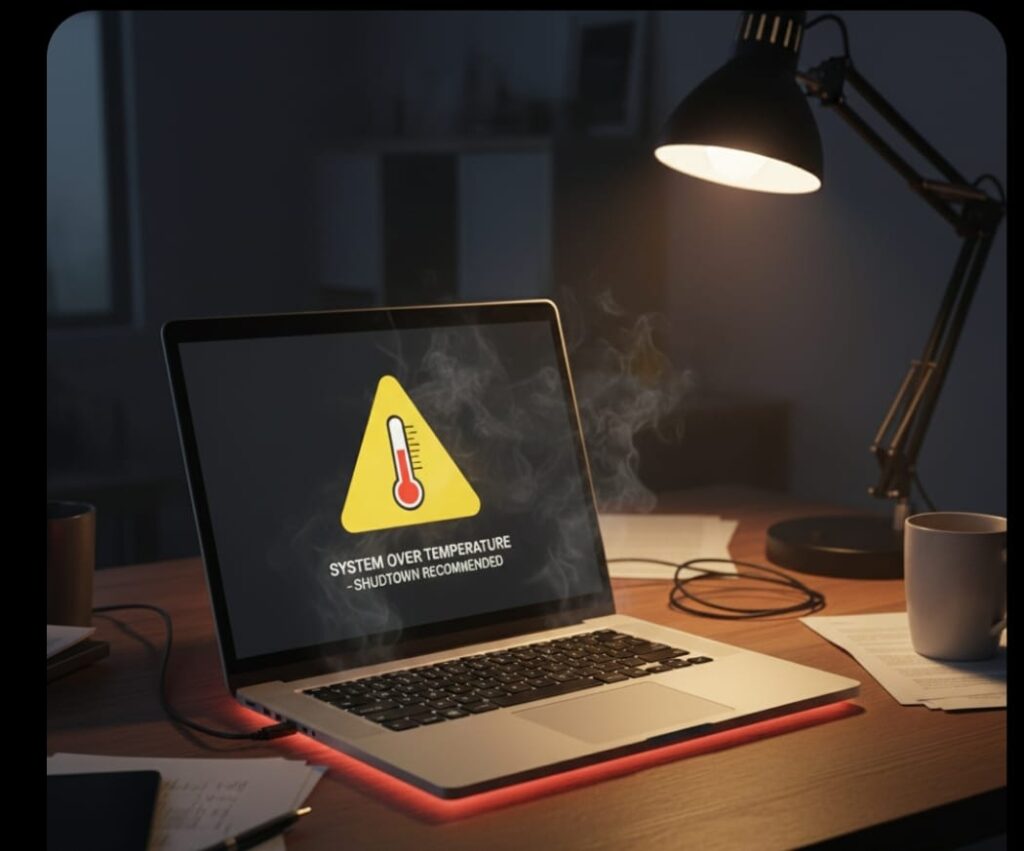
Laptop overheating is one of the most common problems users face while gaming, studying, or doing office work. When a laptop gets too hot, it becomes slow, lags, freezes, and sometimes shuts down automatically to protect the hardware.
Regular cleaning is an important laptop overheating fix that improves airflow and reduces heat quickly.
The good news? You can fix laptop overheating easily at home with simple steps.
2.Clean the Dust from Vents & Fans

Dust is the number one reason laptops overheat.
When dust blocks the vents, your laptop cannot release hot air, causing it to heat up quickly.
How to fix it:
- Turn off your laptop
- Use a soft brush or air blower
- Clean the bottom vents and fan grills
- Gently blow air into the vents to remove internal dust
Do not open the laptop if you are not experienced.
Surface cleaning alone can reduce temperature by 10–15°C.
➡️ This simple laptop overheating fix can improve cooling and prevent high temperatures.
Using a laptop overheating fix regularly can help keep your device cooler and improve performance.
3.Use a Cooling Pad (Highly Effective)
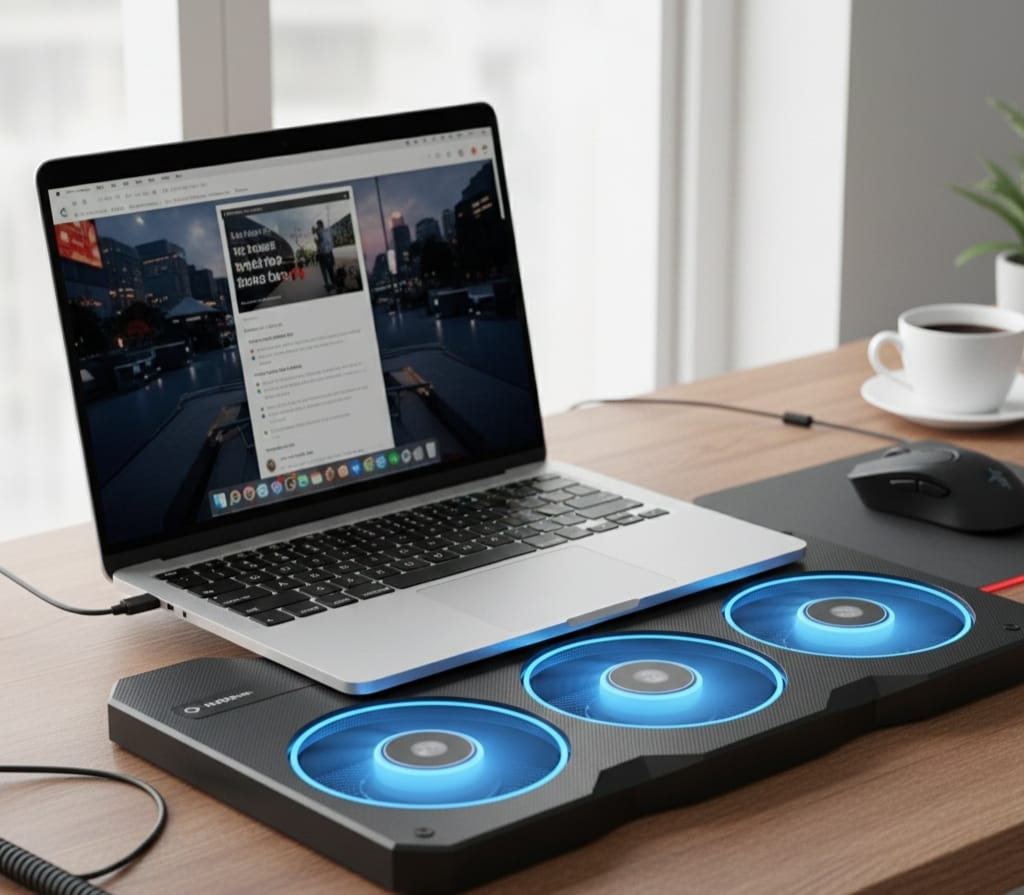
A cooling pad has built-in fans that push cold air into your laptop and keep it cool.
Benefits:
- Reduces temperature instantly
- Improves performance while gaming
- Prevents thermal throttling
- Increases laptop lifespan
A good cooling pad costs only ₹500–₹900 and can make a huge difference
Close Background Apps & Processes
Too many background apps can overload your CPU and increase heat. Closing unnecessary programs instantly reduces temperature and improves performance.
How to Fix It (Windows):
- Press Ctrl + Shift + Esc to open Task Manager
- Click on Processes
- Check which apps are using high CPU or Memory
- Right-click the unnecessary app → select End Task
This simple step reduces CPU load and cools down your laptop quickly.
Note: Do not close important system processes like Windows Explorer, System, or Service Host, as your laptop may stop working properly
➡️ A cooling pad is one of the most effective laptop overheating fix solutions.
4.Change Power Settings for Cooler Performance
Windows Performance Mode uses more power, which makes the CPU work harder and generate extra heat.
If you want your laptop to stay cooler during normal use, changing the power mode can make a big difference.
Why this fix works
- Performance mode pushes the CPU to high speed → more heat
- Balanced / Better Battery mode reduces CPU load → less heat
- Perfect for studying, browsing, office work, and media use
How to change the power mode (Windows 10/11)
Follow these steps:
- Open Settings
Press the Windows key → click Settings (⚙️). - Go to System
Here you will find basic device options. - Select Power & Battery
This section controls battery and performance modes. - Under Power Mode, choose:
✔ Balanced (Recommended)
✔ Better Battery
Avoid “Best Performance” mode unless you are gaming or doing heavy tasks, because it generates a lot of heat.
What this change does
- Reduces CPU load
- Decreases laptop temperature by 5–15°C
- Lowers fan noise
- Extends battery life
- Keeps performance smooth for normal use
5. Apply New Thermal Paste (For Old Laptops)
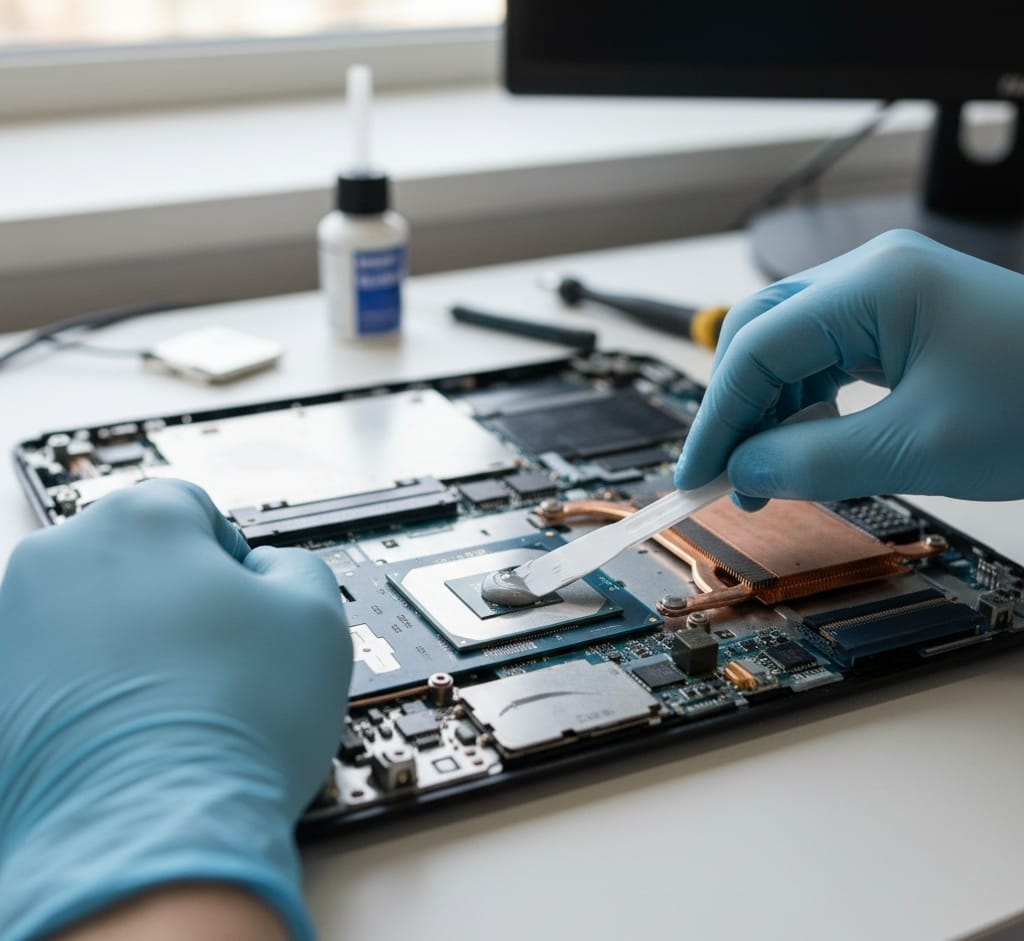
If your laptop is more than 2–3 years old, the thermal paste between the CPU and heatsink dries up.
When the paste dries, heat transfer becomes weak — causing overheating, lag, sudden shutdowns, or fan noise.
When should you replace thermal paste?
Replace the thermal paste if you notice:
- Your laptop gets extremely hot
- The fan always runs at full speed
- Performance drops while gaming or using heavy apps
- Laptop temperature stays above 85–90°C
How much does it cost?
Getting thermal paste replaced at a repair shop usually costs ₹300–₹800 depending on the shop and city.
How much improvement will you see?
A good thermal paste application can reduce laptop temperatures by 15–20°C, leading to smoother performance and longer device life.
6. Use Your Laptop on a Hard Surface
Using a laptop on a bed, blanket, pillow, or sofa blocks the airflow vents.
When airflow is blocked, heat gets trapped and the laptop overheats quickly.
Best places to use a laptop:
- Tabletop
- Wooden board
- Laptop stand
- Any flat, hard surface
Why this works
A hard surface allows air to flow from the laptop’s vents properly.
This keeps temperatures low and helps your laptop run smoother — especially during gaming or long study/work sessions.
7. Enable Performance-Friendly BIOS Settings
(Use these only if your laptop still overheats after trying all other fixes.)
Some laptops have BIOS/UEFI settings that help control temperature, improve stability, and reduce overheating.
These settings are safe if you follow them exactly.
⚠️ Important Note
If you don’t understand BIOS, do NOT change random settings.
Only follow the safe steps given below.
🔧 Best BIOS Settings to Reduce Overheating
1) Enable CPU Fan Control / Full Fan Speed Mode
Many laptops allow manual or dynamic control of the cooling fan.
Why this helps:
✔ Fan runs faster during heavy tasks
✔ Keeps temperature low
✔ Prevents sudden shutdowns
How to Enable:
- Restart your laptop
- Press F2 / F10 / Delete to enter BIOS
- Go to Hardware Monitor or Cooling
- Enable Fan Control or Full Fan Speed Mode
- Save & Exit
2) Disable Turbo Boost (Optional but effective)
Turbo Boost increases CPU speed but also increases heat.
Turning it off reduces temperature by 8–12°C, especially during gaming or editing.
Steps:
- Open BIOS
- Go to Advanced Settings
- Find Intel Turbo Boost / AMD Precision Boost
- Turn OFF
- Save & Exit
(Do this only if your laptop gets very hot even in normal use.)
3) Enable “Optimized Defaults” (Safest for all users)
If your laptop behaves strangely or heats suddenly, loading optimized defaults can fix misconfigured BIOS settings.
Steps:
Save & Exit
Open BIOS
Select Load Optimized Defaults
8.Final Tips to Keep Your Laptop Cool
Final Tips to Keep Your Laptop Cool
Here are some extra quick tips to prevent overheating in daily use:
- Avoid direct sunlight or hot rooms
- Keep your laptop software updated
- Disable startup apps you don’t need
- Clean vents every 2–3 weeks
- Use a laptop stand for better airflow
- Do not charge and game at the same time
- Avoid blocking the fan exhaust
These small habits greatly improve cooling and extend laptop lifespan.
9.Frequently Asked Questions (FAQ)
Q1. Why does my laptop get hot so quickly?
A laptop overheats mainly due to dust, high CPU usage, old thermal paste, or blocked airflow.
Q2. Is laptop overheating harmful?
Yes. It reduces performance, causes lag, and can damage internal components long-term.
Q3. Can overheating permanently damage a laptop?
If the temperature stays above 90°C often, it can harm the battery, CPU, and motherboard.
Q4. How much temperature is safe for a laptop?
Safe: 50–80°C during normal use.
Above 90°C = overheating.
➡️ Using the right laptop overheating fix can protect your laptop from long-term damage.
Q5. Should I use a cooling pad?
Yes. A good cooling pad can reduce temperatures by 5–10°C.
➡️ Using the right laptop overheating fix can protect your laptop from long-term damage.
10.Conclusion
Using the right laptop overheating fix can protect your laptop from long-term damage. Laptop overheating is a common issue
Laptop overheating is a common issue, but you can easily fix it with the solutions mentioned in this guide. From cleaning dust and changing power settings to applying new thermal paste and optimizing BIOS, each step helps reduce heat and improve performance.
Follow these methods regularly to enjoy a cooler, faster, and longer-lasting laptop.
This simple laptop overheating fix will help your laptop stay cool and perform better.
For more detailed instructions on fixing laptop overheating, you can also check this helpful guide by HowToGeek.
If you’re looking to upgrade to a better laptop, check these guides:
- Best Budget Laptop for Students under 35000
- Best Laptop for Coding under 40000