If your laptop running slow even after basic fixes, this guide will help you.
Is your laptop running slow even while doing simple tasks?
Does it take forever to start Windows, open apps, or load websites?
Do you experience lag, freezing, or sudden slowdowns during work or study?
If yes, you are not alone.
A slow laptop is one of the most common problems people face today — whether you are a student attending online classes, an office worker handling daily tasks, a gamer, or a content creator.
Over time, even a good laptop can become slow due to background apps, storage problems, heating issues, outdated software, or hidden system settings.
The frustrating part?
Most people think the only solution is to buy a new laptop or spend money on repairs.
But that’s not true.
The good news is — you don’t need to be a tech expert.
You don’t need to install risky software.
And you definitely don’t need to spend money on upgrades right away.
In this step-by-step guide, you’ll learn 10 easy, practical, and proven ways to fix a slow laptop and make it faster, smoother, and more responsive — within minutes.
These methods are beginner-friendly, safe, and tested.
They work on Windows 10, Windows 11, and even older laptops, whether you use an SSD or HDD.
By following this guide till the end, you will:
✔ Speed up your laptop performance
✔ Reduce lag and freezing issues
✔ Improve startup and app loading time
✔ Extend your laptop’s lifespan
✔ Make your system feel almost like new again
Let’s first understand why your laptop becomes slow, and then we’ll fix it step by step.
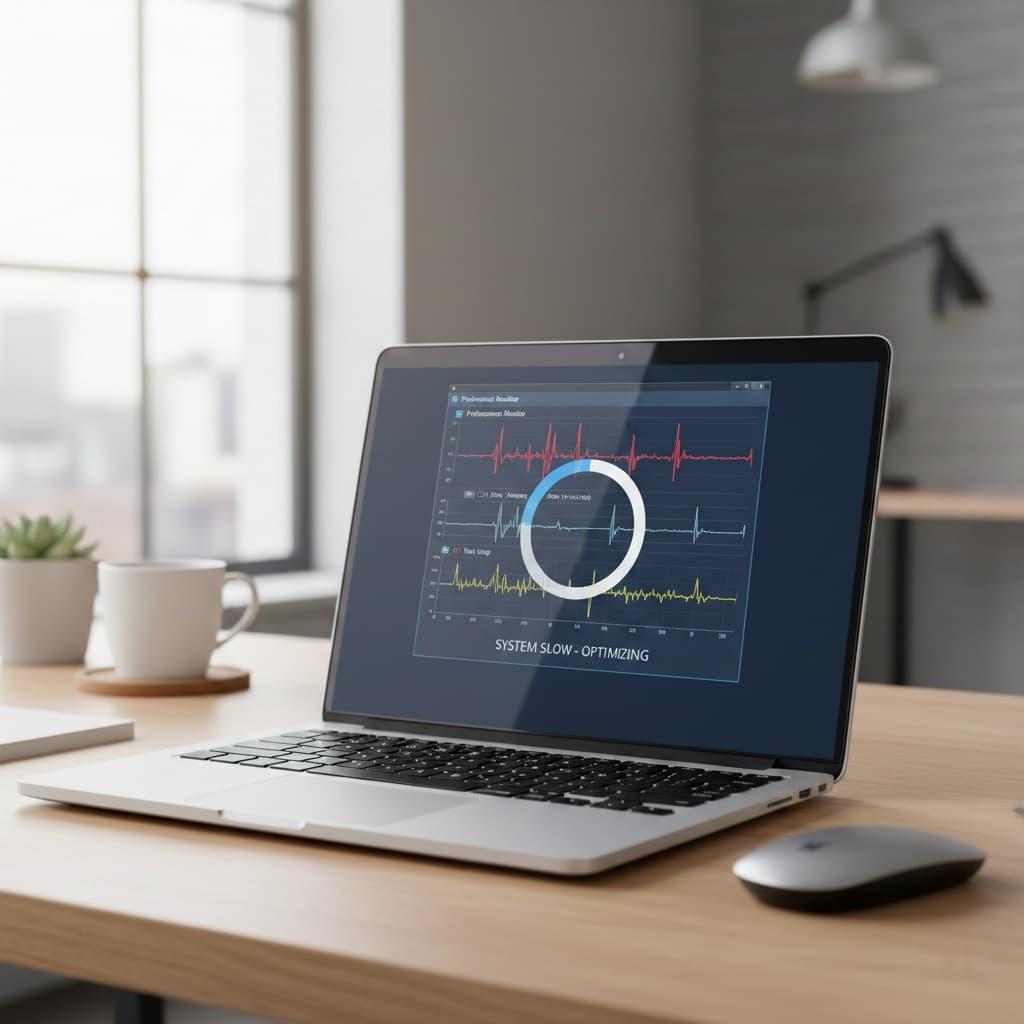
A slow laptop can cause lag, freezing, and delayed response during daily tasks.
Why Is Your Laptop Running Slow?
A laptop doesn’t become slow overnight. In most cases, performance issues build up gradually due to multiple small problems inside the system.
When you use your laptop daily for work, study, browsing, or entertainment, background processes keep running silently. Over time, these processes consume system resources like RAM, CPU, and storage, which directly affects speed.
Here are the most common reasons why your laptop starts running slow:
Microsoft’s official Windows performance optimization guide
For official and trusted performance tips, you can also check Microsoft’s official Windows performance optimization guide.
Common Reasons for a Slow Laptop
- Too many startup programs running in the background
- Low RAM or high memory usage
- Storage almost full (especially on HDD-based laptops)
- Outdated Windows or system drivers
- Too many background apps and browser tabs
- Overheating due to dust or poor ventilation
- Malware or unwanted software running silently
- Old hardware struggling with modern software
The good news is that you don’t need to replace your laptop immediately. In most cases, these problems can be fixed with simple settings changes and optimizations.
Let’s first understand how to identify the exact cause of slow performance before applying the fixes.
10 Easy Ways to Fix a Slow Laptop
1. Disable Unnecessary Startup Programs
When your laptop starts slowly, one of the biggest reasons is too many startup programs running in the background.
Many applications automatically start when Windows boots, using RAM and CPU even when you don’t need them.
How to fix it:
- Press Ctrl + Shift + Esc to open Task Manager
- Go to the Startup tab
- Disable apps you don’t need at startup (like launchers, updaters, etc.)
This simple step can significantly reduce boot time and improve overall performance.
2. Free Up Storage Space
Low storage space can make your laptop extremely slow, especially if you are using an HDD.
When your system drive is almost full, Windows struggles to manage temporary files and virtual memory.
What you can do:
- Delete unnecessary files and folders
- Uninstall unused programs
- Clear temporary files using Disk Cleanup
Try to keep at least 20–25% free space on your system drive for smooth performance.
3. Update Windows and System Drivers
Outdated Windows updates and old drivers can significantly slow down your laptop.
Drivers control how your hardware communicates with the system, and outdated versions can cause lag, freezing, or poor performance.
What you can do:
- Check for Windows updates regularly
- Update graphics, network, and chipset drivers
- Restart your laptop after updates to apply changes
Keeping your system up to date ensures better stability, security, and speed.
4. Uninstall Unnecessary Programs
Many laptops come with pre-installed software that you may never use. These programs consume system resources and slow down performance in the background.
What you can do:
- Open Control Panel → Programs → Uninstall a program
- Remove apps you no longer need
- Avoid installing unnecessary third-party software
A clean system runs faster and more smoothly.
5. Reduce Background Apps and Browser Tabs
Too many background apps and open browser tabs can overload your RAM and CPU, especially on low-end laptops.
What you can do:
- Close unused browser tabs
- End unnecessary background apps using Task Manager
- Disable auto-running apps that you don’t use
This instantly improves responsiveness and multitasking speed.
6. Scan for Malware and Unwanted Software
Malware and unwanted programs can silently slow down your laptop by consuming system resources.
What you can do:
- Run a full scan using Windows Security
- Avoid downloading software from unknown sources
- Keep your antivirus updated
A clean system performs much better and stays secure.
7. Adjust Power Settings for Better Performance
Laptops often run on power-saving mode by default, which limits performance.
What you can do:
- Open Power & Battery settings
- Select Best performance mode
- Plug in your charger while doing heavy tasks
This allows your laptop to use its full performance potential.
8. Clean Your Laptop and Improve Cooling
Dust buildup can cause overheating, which forces your laptop to slow down automatically.
What you can do:
- Clean air vents regularly
- Use your laptop on a hard, flat surface
- Avoid blocking airflow
Better cooling helps maintain consistent performance.
9. Upgrade Hardware (If Possible)
If your laptop is still slow, hardware upgrades can make a huge difference.
Best upgrades:
- Replace HDD with SSD
- Increase RAM (if supported)
These upgrades can make even old laptops feel fast again.
10. Restart Your Laptop Regularly
Keeping your laptop running for long periods without restarting can slow it down.
What you can do:
- Restart at least once every few days
- Close apps before shutting down
A simple restart clears memory and refreshes the system.
Frequently Asked Questions (FAQ)
1. Why is my laptop running slow even after basic fixes?
A laptop may still run slow due to background apps, outdated drivers, insufficient RAM, overheating, or an old HDD. Advanced optimization and system cleanup can significantly improve performance.
2. Can a slow laptop be fixed without upgrading hardware?
Yes. In most cases, a slow laptop can be fixed by disabling startup programs, freeing up storage, updating Windows, and optimizing system settings—without spending money on upgrades.
3. Does low storage space make a laptop slow?
Yes. When storage is almost full, Windows struggles to manage temporary files and virtual memory, which can slow down overall system performance.
4. How often should I clean my laptop to keep it fast?
You should clean temporary files and check startup apps every 1–2 months. Physical cleaning (dust removal) should be done every 6–12 months.
5. Is Windows 10 or Windows 11 better for performance on old laptops?
Windows 10 generally performs better on older or low-spec laptops. Windows 11 works best on newer hardware with SSDs and sufficient RAM.
🧠 Final Conclusion
Final Thoughts
A slow laptop does not always mean you need to buy a new one.
By following these simple and practical steps, you can significantly improve your laptop’s speed, responsiveness, and overall performance.
Most of these fixes take only a few minutes and work on Windows 10, Windows 11, and older laptops as well.
By following these steps, you can fix a laptop running slow issue permanently.
A slow laptop is often linked with overheating and background performance issues.