Windows 11 running slow after update is a common problem many users face after installing the latest Windows updates.
Did your Windows 11 PC become slow after a recent update?
Does it take longer to boot, open apps, or respond smoothly?
You are not alone.
Many users notice performance issues after Windows updates due to background processes, driver conflicts, or system setting changes.
In this guide, you’ll learn 7 proven fixes that actually work in 2025 to make Windows 11 faster, smoother, and more responsive — without reinstalling Windows or upgrading hardware.
This guide will help fix Windows 11 running slow after update issues on most laptops and PCs.
Why Windows 11 Runs Slow After Update?
After installing a Windows 11 update, many users notice that their PC suddenly feels slower than before.
Common issues include longer boot time, lag while opening apps, high CPU or disk usage, and overall poor performance.
This usually happens due to background update processes, driver conflicts, or system settings being reset after the update.
Fix 1: Disable Unnecessary Startup Apps
After a Windows 11 update, many apps automatically start running in the background when the PC boots.
These startup programs consume RAM and CPU, making the system slower.
Disabling unnecessary startup apps can significantly improve boot time and overall performance.
- Press Ctrl + Shift + Esc to open Task Manager
- Go to the Startup tab
- Right-click on apps you don’t need at startup
- Select Disable
- Restart your PC
- Fix 1 – Startup Apps
- Fix 2 – Background Windows Update
- Fix 3 – Update / Roll изменений Drivers
- Fix 4 – Free Disk Space
- Fix 5 – Disable Visual Effects
- Fix 6 – Run SFC / DISM
- Fix 7 – Reset Power Plan
Fix 2: Windows 11 Running Slow After Update Due to Background Updates
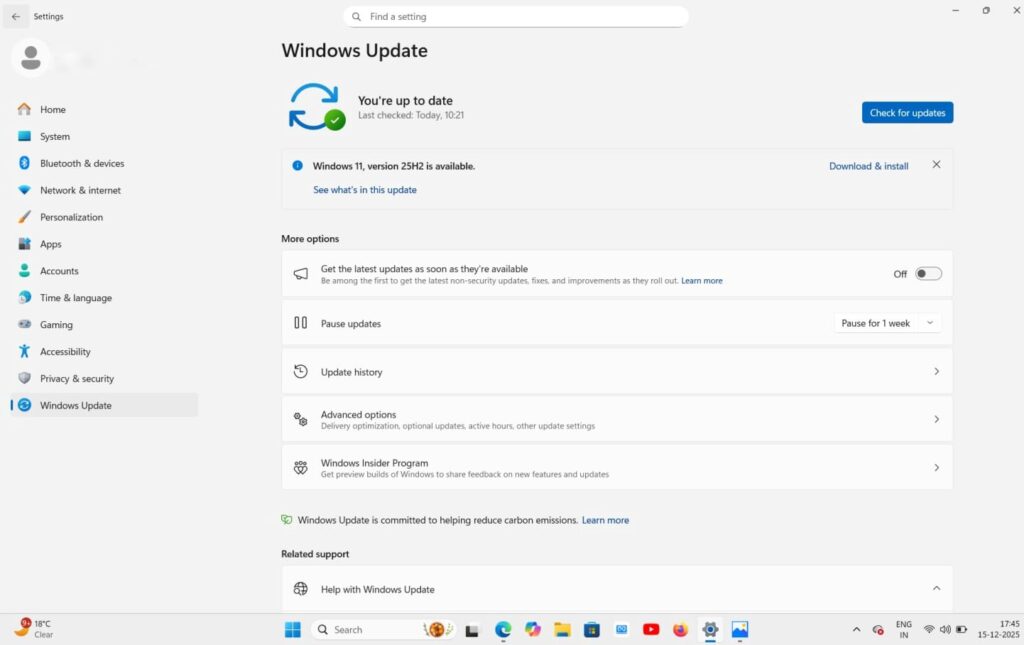
Background Windows updates often run silently in the background and consume high CPU, disk, or internet resources.
After a major Windows 11 update, these background processes may continue syncing, indexing, or downloading additional files, which can slow down system performance.
To fix this issue:
- Open Settings > Windows Update.
- Click on Pause updates and pause them for 1 week.
- Restart your PC after pausing updates.
Pausing background updates temporarily allows Windows to stabilize system processes and improves overall performance.
You may also want to read our Windows performance optimization guide.
Why Windows 11 Becomes Slow After Updates
Windows 11 updates often introduce new features, security patches, and background services. On some systems, especially low or mid-range laptops, these background processes consume high CPU, RAM, or disk usage. This results in slower boot time, lagging apps, and delayed response. Temporary performance drops are common after major Windows updates, but they can usually be fixed by adjusting update settings, disabling unnecessary startup programs, and optimizing system resources.
Common Mistakes to Avoid After Windows 11 Update
Many users make mistakes after updating Windows 11 that can slow down their system further. Installing too many third-party optimization tools, disabling important system services, or skipping restarts after updates can negatively impact performance. Always restart your PC after major updates, avoid unnecessary cleaner apps, and allow Windows some time to complete background optimization. Keeping sufficient free disk space and updating drivers regularly also helps maintain smooth performance.
Microsoft explains that Windows updates may temporarily slow down performance on some devices.
Final Thoughts
If your Windows 11 is running slow after update, there is no need to panic. In most cases, the issue is temporary and caused by background updates, driver adjustments, or system optimization tasks. By following the fixes mentioned above, you can easily restore your PC’s speed and performance. Keeping your system updated, avoiding unnecessary apps, and maintaining enough free storage will ensure Windows 11 runs smoothly after every update.
This guide will help fix Windows 11 running slow after update issues on most laptops and PCs.