Windows 11 high RAM usage on 8GB laptops is a common problem faced by many users.
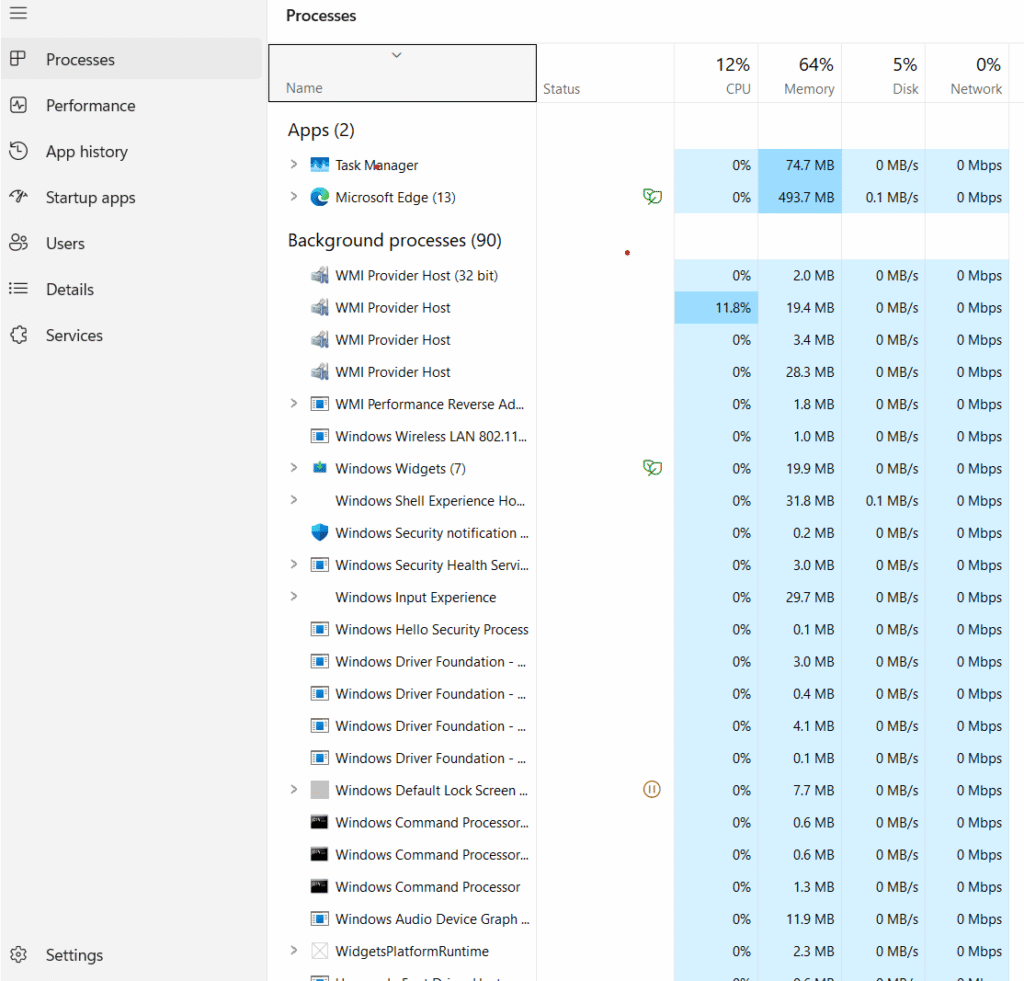
Even when no heavy apps are running, Task Manager often shows 60%–80% RAM usage.
This can make the system slow, laggy, and unresponsive — especially on low-end or older laptops.
The good news is that high RAM usage in Windows 11 is usually caused by settings,
background apps, and unnecessary services — not a hardware problem.
In this guide, you’ll learn 9 proven fixes to reduce high RAM usage on Windows 11
and make your 8GB RAM laptop faster and smoother without upgrading RAM.
Why Windows 11 Uses So Much RAM on 8GB Laptops
Windows 11 is designed to use available RAM to improve performance.
However, on 8GB RAM laptops, background services, visual effects,
startup apps, and memory-hungry processes can quickly increase RAM usage.
This is why many users notice high RAM usage even during normal tasks
like browsing or using File Explorer.
9 Proven Fixes to Reduce High RAM Usage in Windows 11
Disable Startup Apps in Windows 11
Many apps automatically start when Windows boots and consume RAM in the background.
Steps:
- Press Ctrl + Shift + Esc to open Task Manager
- Go to the Startup tab
- Disable apps with High or Medium startup impact
- Restart your system
Fix 2: Turn Off Background Apps
Background apps keep running even when you are not using them,
which increases RAM usage on 8GB laptops.
Go to:
Settings → Apps → Installed Apps → App permissions
Disable background activity for unnecessary apps.
Fix 3: Disable Visual Effects for Better Performance
Visual effects like animations and transparency consume extra RAM.
Steps:
- Press Windows + S and search “Advanced system settings”
- Click Settings under Performance
- Select “Adjust for best performance”
- Click Apply and OK
Fix 4: Increase Virtual Memory (Page File)
Virtual memory helps Windows manage RAM more efficiently.
Set recommended virtual memory values to reduce high RAM usage
on Windows 11 8GB systems.
Recommended Virtual Memory for 8GB RAM:
Initial Size: 4096 MB
Maximum Size: 8192 MB
Restart your system after applying changes.
Fix 5: Restart Windows Explorer
Restarting Windows Explorer can free up RAM instantly.
Steps:
- Open Task Manager
- Right-click Windows Explorer
- Click Restart
Fix 6: Use Lightweight Browser Settings
Browsers like Chrome consume a lot of RAM.
Disable unnecessary extensions and limit background tabs.
Web browsers are one of the biggest reasons for high RAM usage on Windows 11,
especially on 8GB RAM laptops.
Google Chrome, Edge, and Firefox continue running background processes
even after closing tabs, which increases memory consumption.
Steps to reduce browser RAM usage:
- Open your browser settings
- Disable unnecessary extensions
- Turn off “Continue running background apps”
- Close unused tabs regularly
- Enable Memory Saver (Chrome / Edge)
Using fewer extensions and tabs can instantly free up RAM
and improve overall system performance.
Fix 7: Disable Background Apps in Windows 11
Many apps continue running in the background even when you are not using them.
These apps consume RAM and slow down your system over time.
Steps to disable background apps:
- Open Settings
- Go to Apps > Installed Apps
- Select unnecessary apps
- Click Advanced options
- Set Background app permissions to “Never”
Disabling background apps can significantly reduce RAM usage
on Windows 11 8GB systems.
Background apps continue running silently and consume RAM even when
you are not actively using them. On 8GB RAM laptops, this can slowly
increase memory usage and reduce overall system responsiveness.
Disabling background activity helps Windows 11 focus resources on
active tasks and improves multitasking performance.
Conclusion: Windows 11 High RAM Usage on 8GB Laptop
High RAM usage on Windows 11 with 8GB RAM is mainly caused by background
apps, startup programs, browser settings, and visual effects rather than
hardware limitations.
By applying the fixes explained in this guide, you can significantly
reduce memory usage and improve overall system performance without
upgrading RAM. These optimizations help Windows 11 run smoother on
low-end and older laptops.
Regular maintenance and smart usage habits can further improve
responsiveness and multitasking performance.
Frequently Asked Questions (FAQ)
Is high RAM usage normal on Windows 11?
Yes, Windows 11 uses RAM aggressively for better performance, but high
usage on 8GB systems can be optimized using system settings.
Can Windows 11 run smoothly on 8GB RAM?
Yes, Windows 11 can run smoothly on 8GB RAM if unnecessary background
apps, startup programs, and visual effects are disabled.
Should I upgrade RAM for Windows 11?
RAM upgrade is not always required. Proper optimization can deliver good
performance for daily tasks on 8GB RAM laptops.