If you are looking for the best SSD for laptop upgrade in 2026, you are in the right place. Upgrading your laptop with an SSD can significantly improve speed, performance, and overall user experience.
If your laptop feels slow, upgrading to an SSD is one of the best decisions you can make in 2026. Compared to traditional hard drives (HDD), SSDs offer faster boot time, quick app loading, and overall better performance.
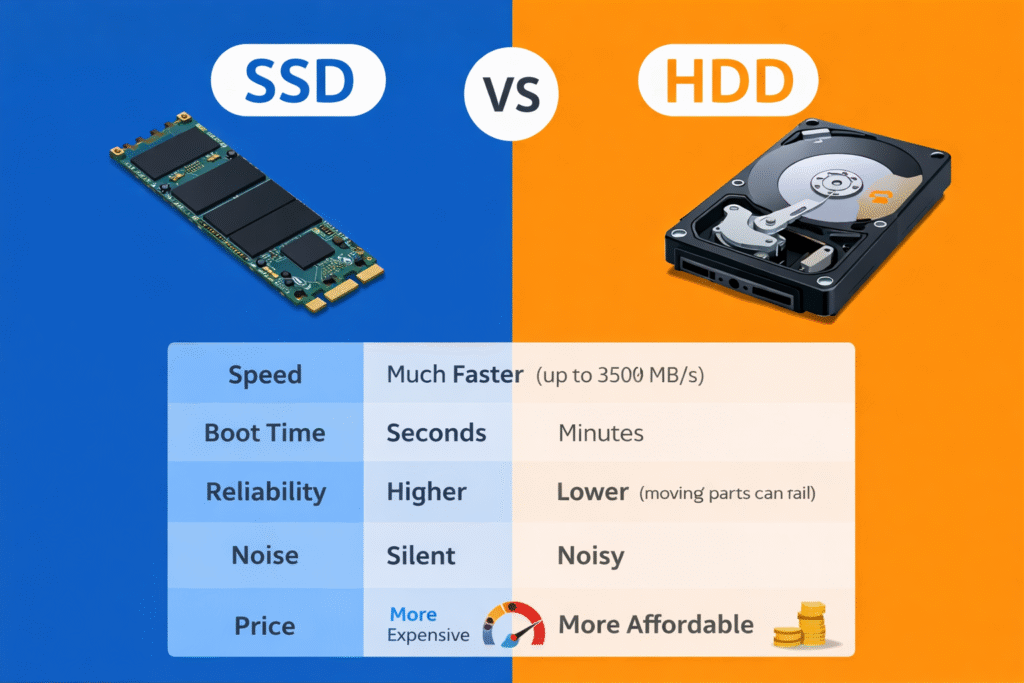
Whether you are using a Windows 11 laptop with 8GB RAM or an older device, installing an SSD can instantly boost speed and responsiveness. In this guide, we will help you choose the best SSD for laptop upgrade, based on performance, reliability, and budget.
👉 If your laptop is running slow, you can also read our guide on how to speed up Windows 11 on 8GB RAM laptop.
Why You Should Upgrade to SSD?
Upgrading to an SSD can completely transform your laptop experience. Here are the main benefits:
- Faster boot time (laptop starts in seconds)
- Improved app loading speed
- Better multitasking performance
- Less heat and noise compared to HDD
- Ideal for Windows 11 and modern applications
Types of SSD for Laptop
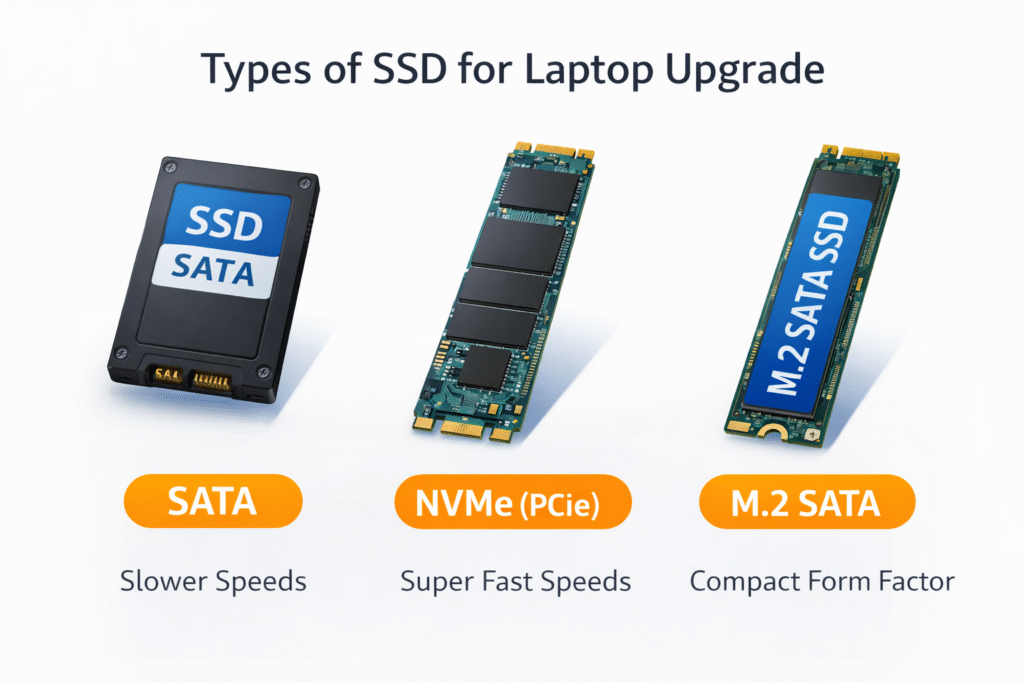
Before buying an SSD, it is important to understand the different types available:
- SATA SSD – Budget-friendly and compatible with most laptops
- NVMe SSD – Much faster but requires compatible laptop
- M.2 SSD – Compact form factor used in modern laptops
Make sure to check your laptop compatibility before choosing the SSD.
Crucial BX500 SATA SSD
Crucial BX500 is one of the best budget SSDs for upgrading old laptops. It offers good performance at an affordable price.
- Type: SATA
- Speed: Up to 540MB/s
- Best for: Budget users and old laptops
Samsung 970 EVO Plus NVMe SSD
Samsung 970 EVO Plus is a high-performance SSD designed for fast computing and heavy tasks.
- Type: NVMe
- Speed: Up to 3500MB/s
- Best for: Gaming, coding, and heavy work
WD Blue SATA SSD
WD Blue SSD is a reliable and balanced option for everyday laptop use.
- Type: SATA
- Speed: Up to 560MB/s
- Best for: Students and daily users
How to Choose the Right SSD for Your Laptop
Choosing the right SSD depends on your laptop compatibility and usage:
- Check if your laptop supports SATA or NVMe
- Decide your budget (500GB or 1TB recommended)
- Choose a trusted brand (Samsung, WD, Crucial)
Pros and Cons of SSD Upgrade
Upgrading to an SSD has many advantages, but there are also a few things to consider:
Pros:
- Faster performance and boot time
- Better multitasking
- Less heat and noise
Cons:
- Slightly more expensive than HDD
- Limited storage compared to HDD in the same price
How to Install SSD in Laptop (Step-by-Step)
Installing an SSD in your laptop is easier than you think. Here is a simple guide:
- Turn off your laptop and remove the battery
- Open the back panel carefully
- Remove the old HDD
- Insert the SSD properly
- Close the panel and install Windows
👉 Tip: If you are not confident, you can take help from a technician.
SSD vs HDD – Which is Better?
SSD is much faster than HDD in terms of speed and performance. While HDD offers more storage at a lower price, SSD provides better overall experience, especially for Windows 11 laptops.
Frequently Asked Questions (FAQs)
Is 500GB SSD enough for laptop?
Yes, a 500GB SSD is enough for most users, including students and office work. However, if you store large files or games, a 1TB SSD is a better option.
Which SSD is best for laptop upgrade?
The best SSD for laptop upgrade depends on your needs. For budget users, SATA SSD like Crucial BX500 is good, while for high performance, NVMe SSD like Samsung 970 EVO Plus is a better choice.
How to Choose SSD
👉 Tip: Always check your laptop’s specifications before buying an SSD. Some laptops only support SATA SSD, while newer models support NVMe SSD for faster performance.
How to Choose the Right SSD for Laptop Upgrade (2026)
👉 Tip: Always check your laptop specifications before buying an SSD. Some laptops support only SATA SSD, while newer models support NVMe SSD for better speed and performance.
Also, consider your usage. If you use your laptop for basic tasks like browsing and office work, a SATA SSD is enough. But for heavy tasks like gaming, video editing, or coding, an NVMe SSD is a better choice.
Make sure to check the storage capacity as well. 500GB is suitable for most users, but if you store large files or games, go for 1TB SSD.